

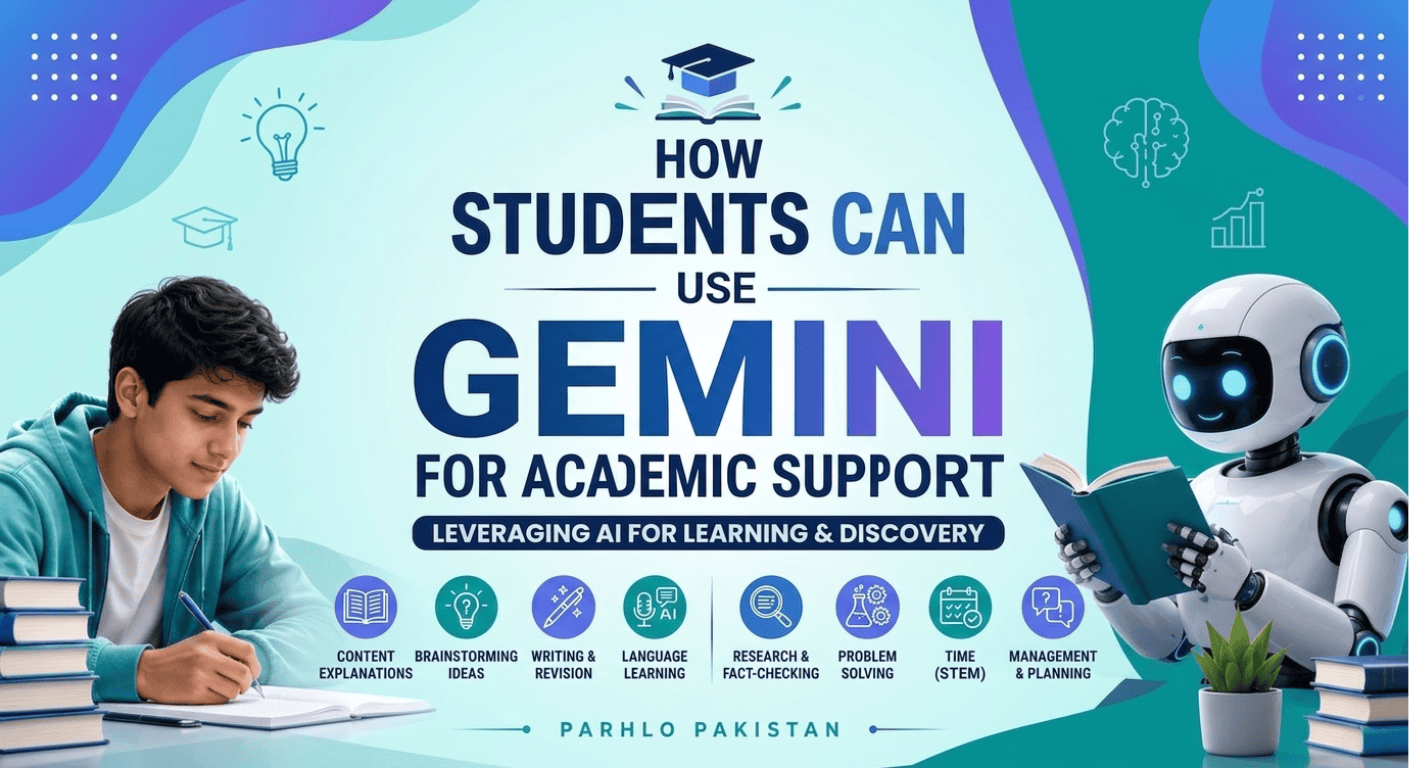
Most students only scratch the surface of what Gemini can actually do. They use it to answer a quick question or clean up a sentence, then close the tab. But Gemini has a full set of features built specifically to support academic work — from diagnosing what you don’t understand yet, to turning your notes into a podcast, to acting as a tutor that asks questions instead of just giving answers.
This guide breaks down every major method college and university students can use to get real academic support from Gemini, along with exactly how to do it.
1. Personalized Study Notebooks
Gemini can build a study plan around your actual coursework instead of a generic study guide. Upload your syllabus, lecture notes, or textbook chapters, and it will run a short diagnostic quiz to find out what you already know and what you don’t — then generate short, focused lessons for your weak spots only.
How to do it:
- Go to gemini.google.com and start a new Study notebook
- Upload your syllabus, lecture PDFs, or textbook chapters
- Take the diagnostic quiz it generates
- Review your dashboard: Strengths, Focus Areas, Not Started
- Work through the lessons it builds for your weak areas
Prompt to use: “I’m preparing for my [subject] midterm. Here is my syllabus and lecture notes. Give me a diagnostic quiz to find what I don’t know, then build lessons only for my weak areas.”
2. Instant Summaries of Readings and Research Papers
Dense journal articles and long reading lists are one of the biggest time drains in college. Gemini can read an uploaded paper or PDF and return a clear summary, the core argument, and the key takeaways in seconds, so you can decide what’s worth a full read and what isn’t.
How to do it:
- Upload the PDF or paste the article text into Gemini
- Ask for a summary, key arguments, and main takeaways
- Ask follow-up questions on anything unclear
Prompt to use: “Summarize this paper in plain language. Give me the core argument, the evidence used, and any major limitations the authors mention.”
3. Audio Overviews for On-the-Go Revision
Not every study session has to happen at a desk. Gemini (through NotebookLM) can turn your notes or readings into an audio discussion you can listen to while commuting, walking, or doing chores — useful for reviewing material a second or third time without staring at a screen.
How to do it:
- Go to notebooklm.google.com
- Upload your lecture notes or readings
- Click “Audio Overview” and wait a few minutes
- Download and listen on your phone
Tip: Listen to the audio overview first, then go back and take a quiz on the same material. Hearing it before testing yourself tends to improve retention.
4. Flashcards and Practice Quizzes
Active recall — testing yourself instead of just re-reading notes — is one of the most effective study techniques there is. Gemini can turn any set of notes into flashcards or quiz questions automatically, so you spend your time practicing instead of formatting.
How to do it:
- Paste your notes or upload the PDF
- Ask for flashcards or a quiz in your preferred format
- Export to Anki or Quizlet if you want spaced repetition
Prompts to use: “Turn these notes into 15 flashcards in Q: / A: format.” “Create 10 multiple-choice questions from this chapter, 4 options each, with answers and explanations at the bottom.”
5. Step-by-Step Help with Math, Statistics, and Code
Instead of just producing a final answer, Gemini can walk through a problem step by step and explain the reasoning behind each move — why a formula applies, why a function behaves a certain way, or where a piece of code is going wrong.
How to do it:
- Upload a photo of the problem or paste your code
- Ask for a step-by-step explanation, not just the answer
- Ask it to explain the underlying concept, not just this one problem
Prompts to use: “Solve this step by step. Don’t just give me the final answer — explain why each step happens so I can do it myself on the exam.” “Debug this code. Explain what each error means and how to fix it.”
6. Socratic Tutoring for Difficult Concepts
Sometimes the fastest way to actually learn something is to be guided toward the answer rather than handed it. With the right prompt, Gemini can act like a tutor — asking questions, checking your understanding, and only confirming the answer once you’ve reasoned through it yourself.
How to do it:
- Tell Gemini explicitly to act as a tutor, not to give direct answers
- Answer its questions and let it correct or guide you
- Ask it to confirm or explain once you’ve attempted a solution
Prompt to use: “Act as a tutor for [topic]. Ask me guiding questions instead of giving me the answer directly. Only explain the correct reasoning after I’ve tried to answer.”
7. Interactive 3D Visualizations and Simulations
Some concepts are much easier to understand visually than through text — anatomy, molecular structures, physics systems. Gemini can generate interactive 3D models and simulations that you can rotate, adjust, and manipulate directly.
How to do it:
- Open Gemini and select a model that supports visualization
- Describe what you want to see and interact with
- Rotate or adjust variables using your mouse or finger
Prompts to use: “Show me how DNA replication works in 3D. I want to rotate the molecule.” “Simulate a pendulum where I can adjust gravity and length with sliders.”
8. Deep Research for Papers and Assignments
For research-heavy assignments, Gemini’s Deep Research mode can search the web and return a structured, cited report on a topic, saving hours of manual searching. It’s a starting point for research, not a replacement for your own reading and verification.
How to do it:
- Select Deep Research mode in Gemini
- Enter your research question with any specific angle you want covered
- Wait several minutes while it searches and compiles the report
- Check every citation yourself before using it
Prompt to use: “Deep research on [topic]. I need a summary with cited sources, focused on [specific angle].”
Important: Always verify citations independently — AI tools can occasionally generate sources that look legitimate but aren’t.
9. Essay Brainstorming and Outlining
Staring at a blank page is one of the most common barriers to starting a paper. Gemini can help brainstorm thesis statement options, structure arguments, and build an outline you can then write from in your own words.
How to do it:
- Give Gemini your assignment prompt or topic
- Ask for thesis statement options or an outline structure
- Use the outline as scaffolding, then write the actual content yourself
Prompt to use: “Outline a 1,000-word essay on [topic]. Include an introduction, three main points with supporting evidence, and a conclusion.”
10. Google Workspace Integration for Writing and Email
If your university uses Google Workspace, Gemini works directly inside Docs, Gmail, and Drive — meaning you don’t have to copy-paste between apps to get help with writing, referencing, or communication.
How to do it:
- In Google Docs: use the Gemini icon to outline, revise, or improve a paragraph
- In Gmail: ask Gemini to draft a professional email to a professor or advisor
- In Drive: ask Gemini to summarize a file without opening it
Prompts to use: “Make this email to my professor sound professional but not robotic.” “Summarize the PDF in my Drive called [filename] in five bullet points.”
Putting It Together: A Simple Study Workflow
You don’t need to use every feature every day. A simple, realistic routine looks like this:
- Morning commute: Listen to an audio overview of yesterday’s material
- Study session: Work through a Study Notebook, focusing on weak areas from the diagnostic
- Practice: Generate a quick quiz from today’s notes, get answers wrong on purpose, read the explanations
- Assignment work: Use Deep Research for background, outline in Docs, then write the actual content yourself
Frequently Asked Questions
Most of these features — study notebooks, audio overviews, visualizations, flashcards, and a limited number of deep research reports — are available on the free tier.
It depends on how it’s used and your institution’s policy. Using it to understand material, quiz yourself, or outline your own writing is generally acceptable. Submitting AI-generated text as your own final work usually isn’t. When in doubt, check your school’s academic integrity policy.
Yes. Gemini and NotebookLM accept PDFs, Word documents, Google Drive files, and even photos of handwritten notes.
It’s a useful starting point, but not infallible. Always verify sources yourself before including them in an assignment — AI tools can occasionally cite sources incorrectly or generate ones that don’t exist.
Yes. Study notebooks, summaries, essay outlining, and deep research apply just as well to literature, history, business, and social science coursework as they do to math or science.